PRACTICAL TUTORIAL
Use p90 from first login to a defensible price.
This tutorial walks through the complete p90 workflow. It explains what to click, what each result means, what data is required, and how to move from simulated exploration to a monitored live product.
Before you begin
Demo mode is safe for exploration and uses simulated metrics. Live mode belongs to an authenticated organization and uses that workspace's product telemetry, cost model, integrations, approvals, and reports. The two modes do not share product data.
Use this page as the operating guide. The shorter product reference defines concepts and endpoints; the operator guide covers deployment and incident recovery.
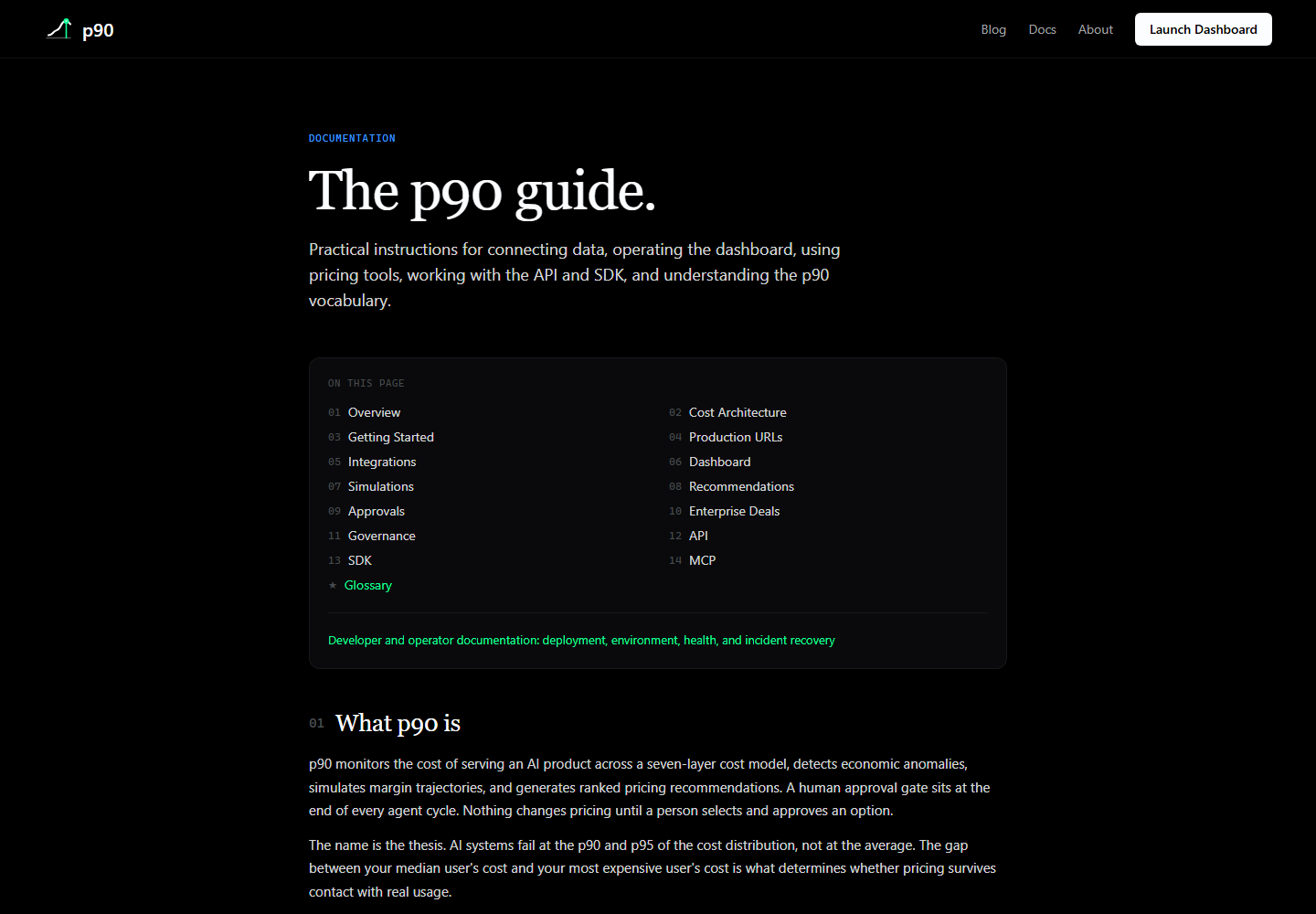
01Choose demo or live mode
Open / or click Launch Dashboard. A new account is taken through onboarding. You will see three possible starting choices:
- ✓Explore with demo data opens a simulated workspace and a guided agent cycle. It does not create an organization, store credentials, or ingest product data.
- ✓Connect my product takes you to the authenticated Connect flow, where your organization can create or select a product workspace.
- ✓Configure later opens an empty workspace so you can inspect the product before connecting anything.
Use the demo first when you want to understand the dashboard. Use live mode when the numbers must represent your product. The header and status bar label the active mode so a simulated chart cannot be mistaken for measured economics.
02Create your product workspace
For live monitoring, create an account or sign in. The organization is the container for your team and portfolio. A workspace represents one monitored product or product line.
- Sign up with your work email, confirm the email if Supabase requests it, and return through
/auth/callback. - Complete onboarding and choose Connect my product.
- On Connect, enter the product name. Use the name customers and teammates recognize, such as Truvyx, rather than the name of an internal service.
- Select the product type, current pricing stage, and monitoring goal. These fields shape the language and priorities of recommendations. They do not replace telemetry or cost inputs.
- Click Save product context. Wait for the saved confirmation. The context should appear on the connection page and in the workspace summary.
Do not create a new organization for every product. Keep related products under one organization and create separate workspaces. The organization page is where owners and admins manage products, members, roles, and service keys.
03Connect product data
Open Connect from the dashboard. First select or create the product workspace. Then choose a connection based on the evidence you need. One source can start monitoring, but a strong pricing decision usually combines product telemetry, model cost, and revenue.
| Connection | Use it for | What it does not provide alone |
|---|---|---|
| Custom AI product telemetry or SDK | Feature, request, user, outcome, retry, token, and cost attribution from your product | Revenue unless you connect a billing source |
| Langfuse, Helicone, or LangSmith | Traces, model calls, tokens, retries, and latency | Complete product-level value and revenue attribution |
| OpenAI or Anthropic Usage API | Provider model execution cost | Which customer action created the cost |
| Stripe, Orb, Metronome, or Chargebee | Subscription or metered revenue | Serving cost and product behavior |
| Salesforce | Enterprise pipeline, cohorts, and revenue context through OAuth | Request-level telemetry |
| MCP | AI assistant access to workspace context and explicitly confirmed actions | Automatic product telemetry ingestion |
| Datadog, Vertex, Bedrock, Databricks, Redshift, Arize, and Cencori | Infrastructure, provider, cohort, or model quality evidence where supported | A complete economic picture by themselves |
For a custom AI product, the recommended first connection is the SDK or an equivalent server-side telemetry integration. The product team instruments the server boundary where the product performs useful work. Do not send customer secrets, raw prompts, or unnecessary personal data.
Custom product telemetry
Issue an ingestion key from Connect, keep the workspace ID and key in the product server environment, and send events from the server. The SDK wrapper records provider calls automatically. Use P90.track() for retrieval, tools, evaluations, agents, vendor work, or any other product operation that is not a direct provider call.
# Python custom event, sent asynchronously
from p90_sdk import P90, P90Config
p90 = P90(P90Config(workspace_id=WORKSPACE_ID, api_key=INGESTION_KEY, session_id=run_id))
p90.track("evaluation_run", source="my-product", duration_ms=8420)
p90.track("retrieval", source="pgvector", reported_cost_cents=0.12)

# Direct HTTP alternative
POST https://api.p90.tech/api/sdk/telemetry
x-p90-key: <workspace ingestion key>
{"workspaceId": "<workspace id>", "eventType": "model_call",
 "input_tokens": 1200, "output_tokens": 240, "duration_ms": 680}
Use a lowercase event type made of letters, numbers, underscores, colons, or hyphens. A successful response means p90 accepted the event. Confirm it by returning to the connection card and checking event count, last event type, source, and timestamp. A swallowed SDK transport error means the host request still succeeded, not that p90 received the event.
OpenTelemetry is an alternative server-side path. Send OTLP/HTTP to https://api.p90.tech/api/sdk/otel/v1/traces with X-P90-Workspace-ID and X-P90-Key. The endpoint is multi-tenant and does not contain a product-specific credential. Use SDK telemetry when you need product events that are not represented as spans.
Connection status vocabulary
- ✓Configured means credentials or connection settings were saved. It does not mean data has arrived.
- ✓Connected means the provider or telemetry path passed its configured connection check. Read the last-event or last-sync evidence separately.
- ✓Pending access or Upcoming means the card is not a verified self-serve source and must not be treated as live evidence.
- ✓No data yet means the connection record exists but p90 has not accepted a usable event or provider sync for this workspace.
- ✓Live means the active workspace is using received product or provider data. Simulated means the dashboard is using demo data.
# SDK destination used by the current production examples
https://api.p90.tech/api/sdk

# Public MCP transport
https://mcp.p90.tech/mcp

# OTLP trace gateway
https://api.p90.tech/api/sdk/otel/v1/traces
After saving a connection, return to the connection card. It should show the connection type, a Connected or Pending state, the last received event or sync status, and the action to review, refresh, disconnect, or reconnect. A key being created is not the same as data being received.
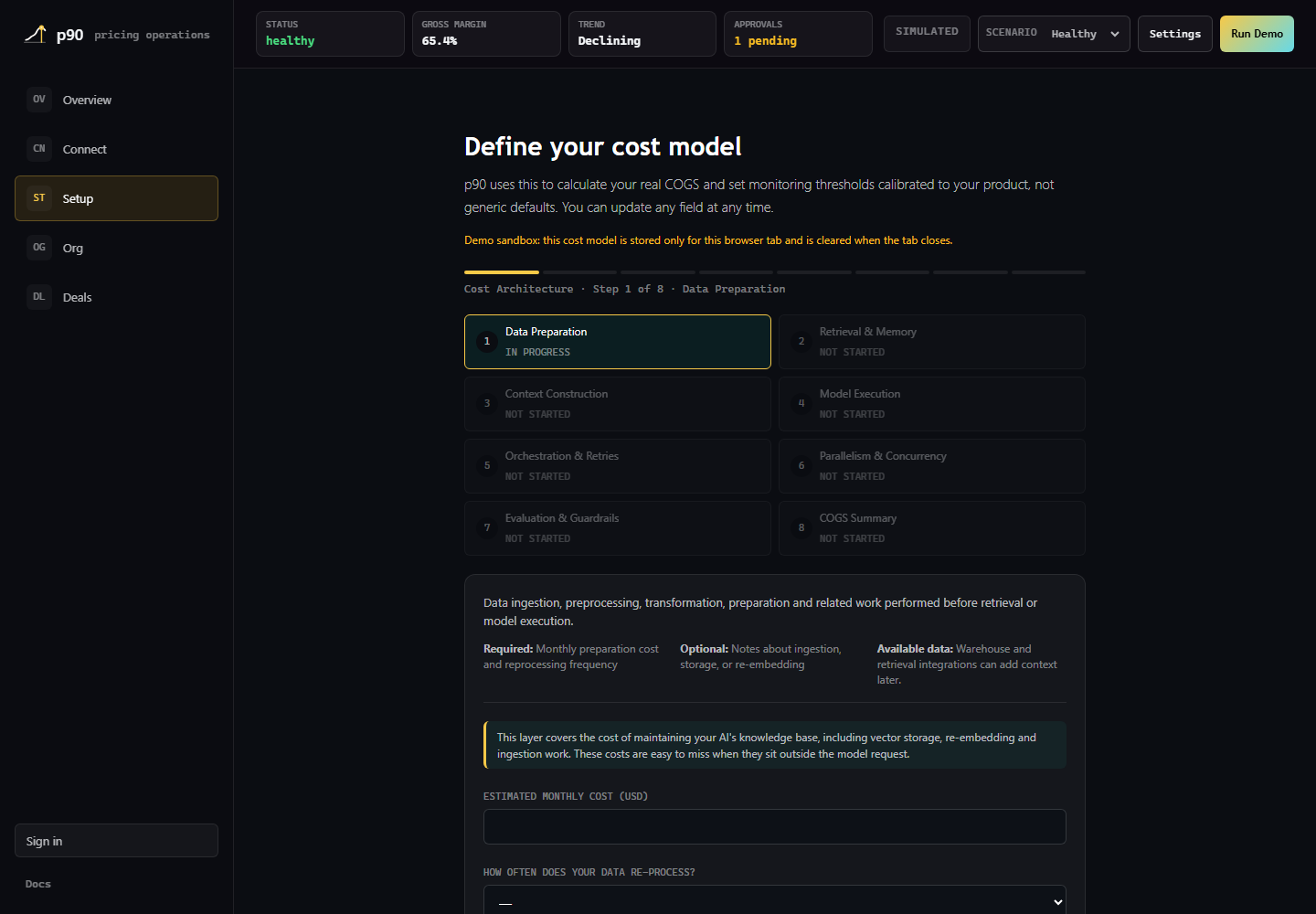
04Configure the cost model
Open Setup. The seven-layer model describes the fully loaded cost of delivering one unit of product value. Enter the values you know. Leaving a field blank is allowed, but the resulting margin is less representative.
- Data Preparation: preprocessing, ingestion, transformation, and knowledge-base preparation.
- Retrieval and Memory: vector storage, search, embedding, and retrieval work.
- Context Construction: prompt assembly, context windows, and conversation state.
- Model Execution: input tokens, output tokens, model rates, and inference calls.
- Orchestration and Retries: tool calls, workflow steps, retries, and repeated work.
- Parallelism and Concurrency: capacity, peak concurrency, and infrastructure pressure.
- Evaluation and Guardrails: tests, validation, safety, quality checks, and post-processing.
What each field means
| Fields | Plain-language meaning |
|---|---|
| layer1_monthly_cost_usd, layer1_reprocessing_frequency, layer1_notes | Monthly cost of preparing or reprocessing product data, how often it happens, and the explanation for the estimate. |
| layer2_cost_per_request_cents, layer2_vector_db_provider, layer2_avg_chunks_retrieved, layer2_notes | Cost of search or memory work per request, the provider used, the typical number of returned chunks, and supporting notes. |
| layer3_avg_prompt_tokens, layer3_avg_history_tokens, layer3_avg_retrieved_tokens, layer3_notes | The typical tokens in the prompt, conversation history, and retrieved context. These explain how much context is sent to the model. |
| layer4_primary_model, layer4_cost_per_1k_input_tokens, layer4_cost_per_1k_output_tokens, layer4_avg_output_tokens, layer4_notes | The main model, provider rates for input and output, typical output size, and any model-cost notes. |
| layer4_uses_semantic_cache, layer4_cache_provider, layer4_cache_hit_rate_baseline, layer4_cache_cost_per_hit_cents, layer4_cache_miss_cost_multiplier | Whether a semantic cache is used, which service runs it, how often it hits, what a hit costs, and how expensive a miss is compared with a normal call. |
| layer5_avg_workflow_steps, layer5_retry_rate_baseline, layer5_notes | How many workflow or tool steps a request usually makes, how often work is retried, and why those estimates are reasonable. |
| layer6_avg_concurrent_requests, layer6_peak_concurrent_requests, layer6_provisioning_overhead_pct, layer6_notes | Normal and busiest simultaneous request counts, the extra capacity cost needed to serve them, and capacity notes. |
| layer7_has_output_evaluation, layer7_evaluation_cost_pct_of_inference, layer7_has_content_filtering, layer7_filtering_cost_per_request_cents, layer7_notes | Whether output evaluation or filtering runs, and the cost each adds to an otherwise completed request. |
| outcome_tracked, outcome_definition, outcome_failure_cost_per_request_cents | Whether the product measures a successful business outcome, how success is defined, and the cost of a failed request when known. |
| current_price_per_request_cents | The revenue currently earned for one comparable unit of product work. Use the same unit as the telemetry and plan assumptions. |
For each layer, provide the monthly or per-request cost fields requested by the form, the frequency or usage assumption when available, and a short note if the number is estimated. Complete the current price field, then use Save and review thresholds when you are ready to set the monitoring floor separately. Save the model before moving to the next workflow.
A blank value means the cost is unknown and leaves the model incomplete. A zero means you have verified that this cost is genuinely zero. Do not enter zero merely to get past validation. Rates are in cents where the field name says cents, token rates are per 1,000 tokens, and percentage fields show their expected unit beside the input. The form and API validate the allowed range.
When the model is saved, p90 recalculates COGS per request, baseline margin, variance headroom, pricing floors, monitoring thresholds, and the inputs used by pricing-plan generation. In demo mode, Setup uses browser-local simulated values. It is not a live cost model.
05Read the Overview dashboard
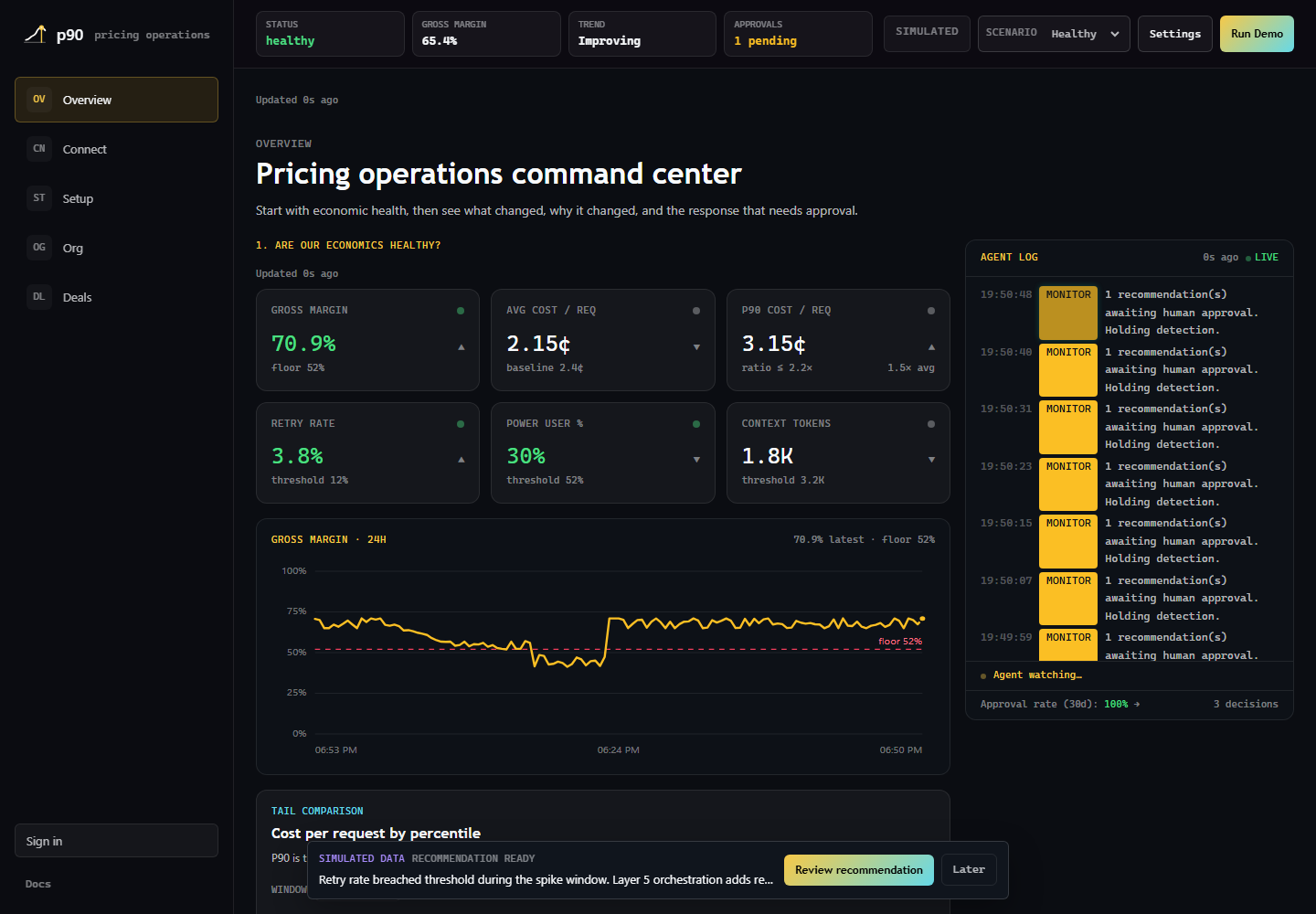
Open Overview after the first metrics snapshot arrives. Read the page from top to bottom:
- ✓The status bar identifies system health, Live or Simulated mode, the current scenario, and pending approvals.
- ✓The economic cards show gross margin, average cost per request, p90 cost per request, retry rate, power-user concentration, and context tokens.
- ✓Gross Margin · 24H plots the recent margin history and the configured floor. It requires history for the selected workspace and time range.
- ✓Tail Comparison shows how the expensive end of usage differs from the average. This is the evidence behind p90's focus on variance.
- ✓Economic Decision State summarizes whether the current price is safe, under pressure, or needs a decision.
- ✓The Agent Log shows Monitor, Detect, Simulate, and Reason activity. A blinking or live indicator means the agent is watching, not that it has changed pricing.
Click Show supporting detail under Economic Decision State to inspect the Economic Causal Chain. Follow the chain from product behavior to cost layer, cost movement, margin effect, and recommended response. This view should explain the result in business language and link back to the evidence that caused it.
06Review and approve recommendations
p90 does not automatically change your product price. When the agent finds a material issue, the dashboard presents a recommendation for human review.
- Click Review recommendation in the notification or open the Approval panel.
- Read the problem statement, the triggering metrics, the affected cost layer, and the time window.
- Open supporting detail to see the causal chain and the assumptions behind the simulated outcome.
- Compare the conservative, moderate, and aggressive options. Check the price, included use, expected margin, risk, and operational action for each option.
- Read Decision Evidence. It records what was observed, what was inferred, what remains uncertain, and why the recommendation was ranked first.
- Select an option, then approve it, or dismiss it with a reason. Approval records the decision and authority. It does not publish a billing change.
In a live organization, use the approval record as the bridge between product, finance, and engineering. If the data source is stale or the cost model is incomplete, fix the evidence first instead of approving a precise-looking number.
07Generate a pricing plan
Open Overview, Plan, Pricing Page Draft. The plan is generated from the saved product context, cost model, target margin, observed request volume, and current economic guardrails.
- Confirm that a cost model is saved. Without one, p90 shows a setup action instead of pretending that explanations are a completed plan.
- Click Generate pricing page.
- Review the Starter, Growth, and Scale tiers. Check included use, overage guidance, price or Custom pricing, customer description, features, FAQs, and call to action.
- Edit the draft to match your commercial language. Editing does not change your billing provider.
- Check the margin guardrail. P90 blocks export when a numeric price falls below the target margin or required plan content is missing.
- Save the draft. The saved pricing-plan version becomes available to the P&L Scenario Overlay and pricing reports.
A generated plan is a pricing decision artifact, not a published checkout page. It does not create Stripe prices, alter subscriptions, or announce a change to customers.
08Use the P&L Scenario Overlay
The overlay is available from the Plan area and compares a saved pricing tier with the current observed economics. It uses the latest cost model, current price, observed request volume, and cost attribution from telemetry or a metric snapshot. It is a decision aid, not a full accounting ledger.
- ✓Select a saved plan tier. The overlay identifies the plan version it uses.
- ✓Inspect projected revenue, cost, gross margin, margin change, and the assumptions shown beside the projection.
- ✓Compare a proposed price or included-use limit with the current state.
- ✓Treat the result as a scenario, not a financial statement. Confirm revenue definitions, billing period, taxes, discounts, and customer contracts outside p90.
Pricing Change changes the per-request price. New Feature changes per-request cost and can change usage. Growth Projection changes request volume over time; growth alone does not change margin percentage unless it also changes the cost mix. The optional power-user mix slider requires observed attribution for both power users and other users.
The baseline line is a flat comparison at today's economics. The overlay line ramps toward the selected end state across the chosen 30, 60, or 90 day horizon. It does not multiply active users by a fixed requests-per-user estimate. If observed volume is missing, connect telemetry or wait for a metric snapshot before relying on the result.
Architecture Decisions is a separate cost-decision log in the Plan section. Record a feature, affected cost layer, estimated cost impact, and rationale there. It supports governance and audit history; it is not silently applied to the overlay until you model the corresponding New Feature scenario yourself.
09Create reports and exports
Open the Report section on Overview. The report cards serve different purposes:
- Margin and P&L Summary: explains current margin, cost, revenue context, trend, and important caveats.
- Cost Architecture: explains the seven layers and how each layer contributes to serving cost.
- Data Quality: tells the reader which integrations are connected, what evidence is present, and what remains missing.
- Saved Pricing Plan: exports the generated tier structure, prices, included use, guardrails, and source context.
- Decision history and audit report: preserves the anomaly, causal chain, options, decision evidence, approval, and plain-language explanation.
Before stakeholder exports, open workspace branding in Settings or Account. Save the company name, logo URL, primary color, and terminology preferences. The logo URL must be publicly reachable by the export renderer. Reopen the report after saving branding and confirm the preview before downloading.
Use Export on an individual report card for a focused Markdown file. Use Decision Audit for a dated range of decisions and choose JSON, CSV, or PDF. JSON is best for downstream processing, CSV is best for a spreadsheet review, and PDF is best for a stakeholder record. The PDF contains decision evidence and plain-language explanations, but it intentionally excludes private prompts and raw internal reasoning.
PDF output is written for a non-technical reader. It should explain what changed, why it matters commercially, how the estimate was formed, what is measured versus assumed, and what action is recommended. A report with no live data must say that it is simulated or incomplete.
Exporting a report does not publish a price, change a billing plan, or send telemetry.
10Manage products and your organization
Open Account and organization to manage the portfolio. Use one organization for the company and multiple product workspaces beneath it.
- ✓Use the Products section to see each connected product, connection type, status, last event or sync time, margin signal, and pending decision count.
- ✓Select a product card to make that workspace active. The dashboard, Setup, Plan, Report, integrations, and keys then operate on that workspace.
- ✓Invite teammates with the least privilege they need. Owners and admins manage connections and keys; analysts review economics; viewers read results.
- ✓Use Review Connection from Overview to see the existing connection details, not to start an unrelated connection flow.
- ✓Use Refresh status to ask the integration for current delivery or sync state. A successful status refresh does not create an event.
- ✓Disconnect a product before changing connection type. Disconnecting stops the connection from being used; it does not erase historical decisions unless the product is deleted through an explicit destructive action.
- ✓Revoke old service keys, rotate keys after team or environment changes, and set expirations for production credentials.
To sign out, open the account menu in the dashboard shell and choose Sign out. After signing out, a browser must not retain access to the prior workspace through cached UI state. Sign back in to verify that the organization and product list are restored from the server rather than from a stale local selection.
If a product appears connected but says No data yet, the connection record exists but no accepted event or provider sync has reached the workspace. Check the endpoint, workspace key, event response, last received event, and backend health before creating another product.
11Use API keys and MCP
Use programmatic access when an organization's developers want to configure p90 from CI, a server, an internal console, or an AI assistant without logging into the dashboard.
SDK and API
Create a workspace-scoped service key from Connect or Account. Store it in a server-side secret manager. Never put it in browser JavaScript, a mobile app, a public repository, or a support ticket.
curl -X POST https://api.p90.tech/api/modules/cogs \
  -H "Authorization: Bearer $P90_API_KEY" \
  -H "Content-Type: application/json" \
  -d '{
    "layer4_primary_model": "gpt-4.1-mini",
    "layer4_cost_per_1k_input_tokens": 0.0004,
    "layer4_cost_per_1k_output_tokens": 0.0016,
    "layer4_avg_output_tokens": 320,
    "current_price_per_request_cents": 4.0
  }'
Use api:read for reading metrics and workspace state. Use api:write only for an automation that must update configuration or trigger an allowed write operation. Keys are workspace-scoped, expire according to policy, and can be revoked.
MCP
MCP carries workspace context to an AI assistant. The local stdio server is useful for a developer workstation. The deployed Streamable HTTP service is available at https://mcp.p90.tech/mcp. In both cases the assistant supplies a workspace-scoped key on each request.
- ✓Use mcp:read to inspect monitoring context and evidence.
- ✓Add mcp:operate only when the assistant may trigger explicitly confirmed monitoring or recommendation actions.
- ✓Add mcp:configure separately when the assistant may read or update the seven-layer cost model.
- ✓set_cost_model requires explicit confirmation. An MCP key does not grant organization ownership or membership administration.
- ✓The public /healthz/live endpoint proves liveness. Protected readiness and tools/list checks prove that authentication and API reachability work.
12Verify a production setup
Before onboarding another organization, run this checklist with a real workspace:
- ✓The user can sign up, confirm email, sign in, sign out, and return to the correct workspace.
- ✓Supabase uses https://p90.tech as the Site URL and allows https://p90.tech/auth/callback.
- ✓The workspace belongs to the expected organization and the product name persists after a new session.
- ✓The connection card shows the actual connection type, Connected status, and last event or sync evidence.
- ✓A test event returns an accepted response and appears in the delivery journal or received-event view.
- ✓The 24-hour chart displays history for the active workspace, and the data source is labelled Live rather than Simulated.
- ✓The cost model is saved with notes for estimates and a documented target margin.
- ✓Recommendations show their evidence, uncertainty, causal chain, options, and approval state.
- ✓The generated pricing plan identifies its source cost model and can be projected in the P&L Overlay.
- ✓Reports include workspace branding and explain measured data, assumptions, limitations, and next actions in plain language.
- ✓Service keys have the smallest required scopes, an expiration date, and a rotation owner.
- ✓CORS allows only the exact frontend origin, while API, SDK, MCP, OTLP, and OAuth callbacks remain on their dedicated service origins.
When data is unavailable
- Confirm the active product and whether the header says Live or Simulated. A valid event sent to another workspace will not populate this one.
- Open Connect and read the connection card. Record configured state, event count, last event or sync time, source, and the exact error message.
- For SDK or direct API delivery, confirm
POST /api/sdk/telemetry, thex-p90-key, the workspace ID, and the accepted response. For OTLP, confirm both P90 headers and the gateway health checks. - Retry the workspace load only after checking the backend health endpoint. Do not create a second organization or product to work around a stale connection.
- Escalate with the timestamp, URL, status code, workspace ID, event type, and response body. Remove all keys, customer identifiers, prompts, and response content first.
# Browser and public pages
https://p90.tech
https://p90.tech/docs
https://p90.tech/sitemap.xml

# Backend health and metrics
Invoke-WebRequest https://api.p90.tech/health
Invoke-RestMethod "https://api.p90.tech/api/metrics/history?hours=24"
When a request fails, record the URL, HTTP status, response body, active workspace, data source mode, and timestamp. Do not paste API keys into logs. For deployment and incident recovery, continue with the operator and developer guide.